
WS Lighting Engine
v1.1.0 StableNext-Gen DMX & Art-Net
Pixel Mapping Engine
WS Lighting Engine is a hyper-optimized software powerhouse for real-time DMX, sACN, and Art-Net LED matrix control. Version 1.1.0 adds Tiger Touch / ATIPRO X2 / grandMA remote control with HTP merge, MIDI button → preset mapping, console BPM 0–9999, live patch apply, and DirectX 12 ComputeSharp shaders.
Download v1.1.0 Installer (.exe)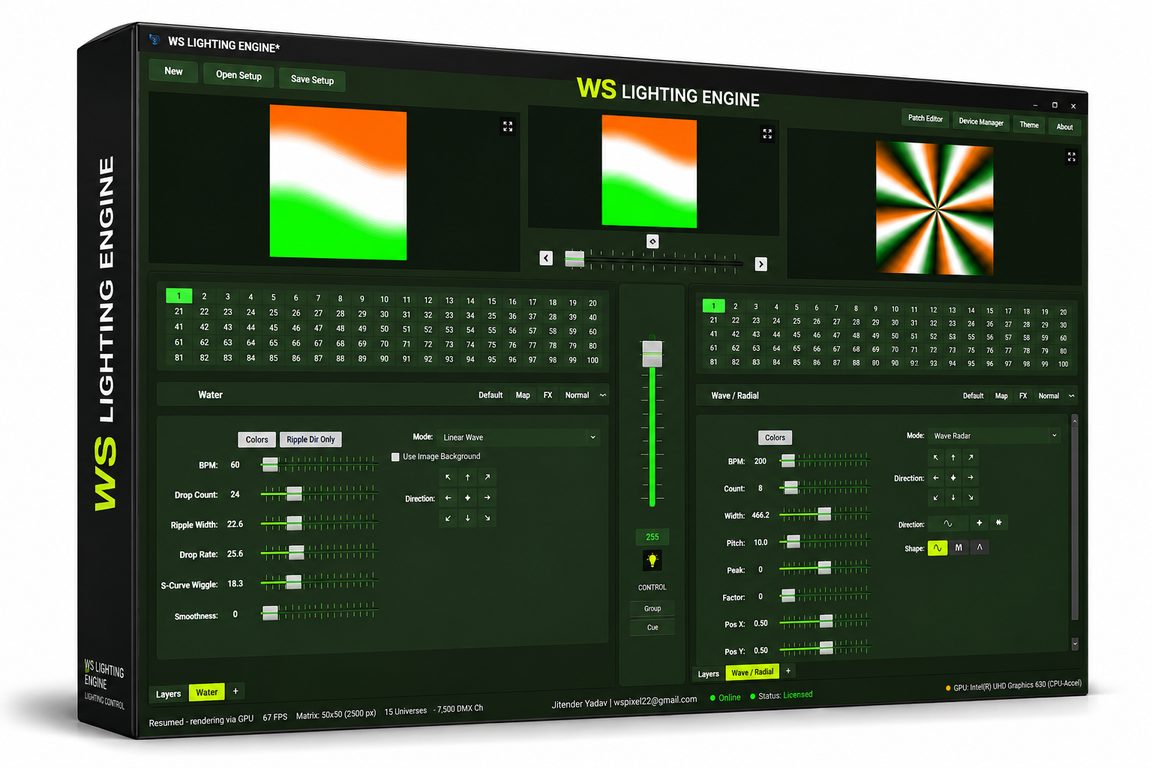
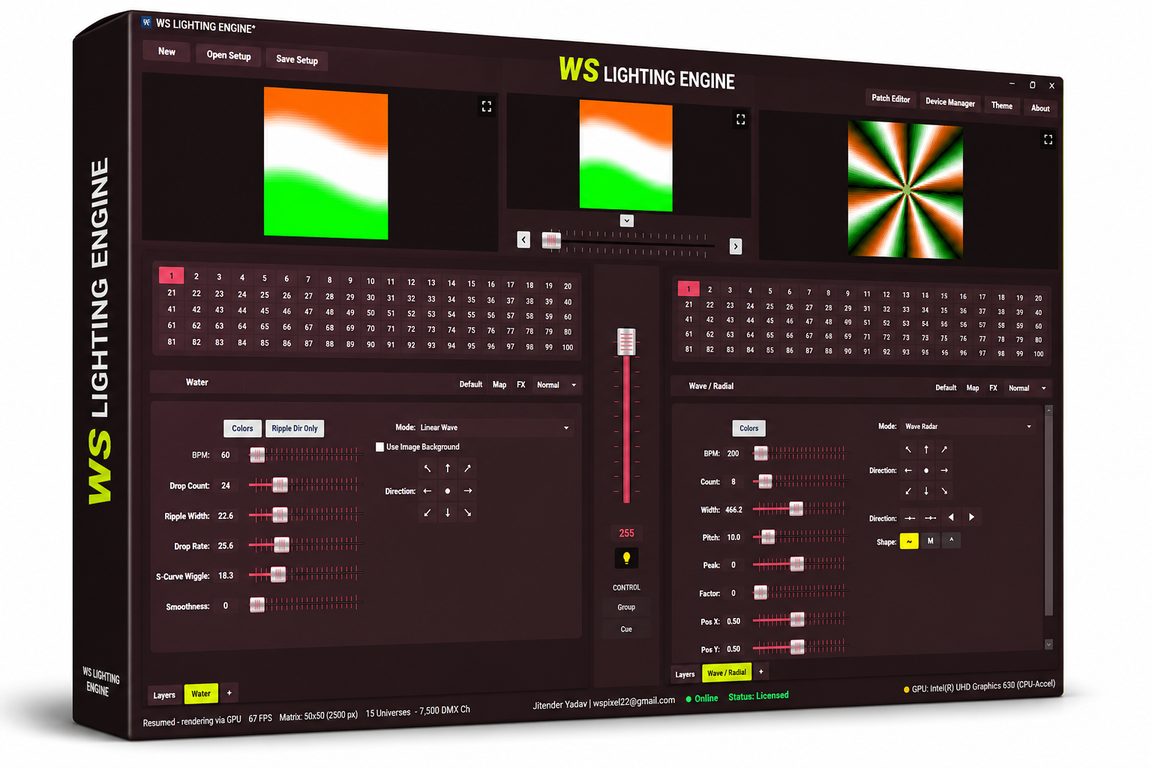
✨ What's New in 1.1.0
Stable build focused on live console remote control, MIDI show playback, and operator workflow.
Tiger Touch / X2 / grandMA
Art-Net / sACN DMX IN remote control with desk discovery, Allow IP lock, and a dedicated Lighting Console tab in Device Manager.
Input Uni → WS Uni Mapping
MADRIX-style HTP merge: map desk input universes into Engine output universes with channel ranges and Merge Value (0–255).
Button → Preset Map
Map any MIDI Note/CC number to any WS Engine storage preset (1–100). Example: MIDI 8 → Preset 12. Mappings persist automatically.
Console Ch14 = 0–9999
Console / MIDI BPM now drives effect BPM across the full 0–9999 range (DMX 0–255 → 0–9999), matching on-screen effect sliders.
Debounced Preset Trigger
Channel 5 preset recalls wait for the desk value to settle (~90 ms), so ramping 1→8 fires only the final preset once.
Live Patch & Grid UX
Live patch apply without save-unless-needed, clearer grid selection, and improved Patch Editor addressing tools.
🎛️ Hardware & Controller Integration
Drive WS Lighting Engine live from USB MIDI controllers or professional lighting desks over the network. Remote control is DMX IN — the desk sends a 14-channel fixture to Engine. Keep that universe separate from LED pixel Art-Net output (example: remote = universe 1, pixels = universe 2+).
USB MIDI Controllers
Akai APC40, Novation Launchpad, Korg nanoKONTROL, Behringer X-Touch, and any standard USB MIDI device. Decodes CC faders and Note On/Off pads.
Learn & Preset Mapper
MIDI Learn binds knobs/pads to Master, Crossfader, Speed, Sensitivity, Color, or presets. The new MIDI Button → Preset Map panel maps any MIDI number to any Engine preset.
Tiger Touch / Titan / X2
Avolites Tiger Touch, Titan Mobile/Quartz, and ATIPRO X2 control Engine over Art-Net (or sACN). Unicast the control universe to the Engine PC.
grandMA2 / MA3 / onPC
Art-Net DMX IN, sACN (E1.31) IN, or OSC. Patch a 14-channel fixture and drive Master, decks, presets, color, and BPM from executors or fader wings.
ArtPoll & Scan Network
Scan discovers Tiger Touch, X2 / Titan, grandMA, and Art-Net nodes. Select a desk → Connect (or double-click). Status shows Active with ms / FPS.
Allow IP + HTP Merge
Lock control to one IP, or comma-separate multiple desk IPs for HTP merge (e.g. Tiger Touch + X2). Empty Allow IP + HTP = accept all desks.
14-Channel Console Fixture Map (DMX IN)
| Ch | Engine control | Range / Operation |
|---|---|---|
1 | Master Brightness | 0–255 → master intensity 0–100% |
2 | Deck Crossfader | 0 = Deck A · 255 = Deck B (also selects focused deck for color/presets) |
3 | Effect Speed | 0–255 → 0.1× to 10.0× |
4 | Audio Sensitivity | 0–255 → 0.0 to 2.0 |
5 | Storage Preset Trigger | 0 = idle · 1–256 = preset cell (must already be saved). Debounced. |
6 | Strobe Hit | 128–255 flash / intensity |
7 | Blackout | Hold above 128 = blackout on; release clears |
8 | Color Red | Focused deck static color R |
9 | Color Green | Focused deck static color G |
10 | Color Blue | Focused deck static color B |
11 | Color White | RGBW white channel |
12 | Effect Select | 0 = idle · 1–N = effect list on focused deck |
13 | Color Palette | 0 = idle · 1–N = global color row |
14 | BPM (both decks) | DMX 0–255 → effect BPM 0–9999 |
🔌 Connect Tiger Touch / X2 / grandMA
Same Engine setup for every desk. Remote control is network DMX IN only — Engine has no native XLR/USB-DMX input. For XLR-only desks, use a DMX→Art-Net node that unicasts to the PC.
1. Network (all desks)
- Put the PC and desk on the same subnet (example: PC
192.168.1.10, desk192.168.1.20). - Disable VPN if Art-Net nodes do not appear.
- Allow WS Lighting Engine through Windows Firewall for UDP
6454(Art-Net) and5568(sACN).
2. Engine setup (Device Manager → Lighting Console)
- Open Device Manager → tab Lighting Console.
- Protocol: Art-Net DMX IN (or sACN DMX IN if the desk is on sACN).
- Set Target Universe to
1(desk “universe 1” = Art-Net universe 0 / Engine target 1 — keep them matched). - Click Scan (magnify). Select Avolites Tiger Touch, ATIPRO X2 / Titan, or grandMA.
- Click Connect (or double-click the row). Turn on Enable Console Control.
- Status should go green, e.g.
Avolites Tiger Touch: Active (… ms / … FPS). - Allow IP shows the desk IP. If scan finds nothing, type the desk IP manually.
3. Avolites Tiger Touch / Titan / ATIPRO X2
- Open System → Networking (or DMX / TitanNet).
- Enable Art-Net on the NIC facing the Engine PC (same IP range).
- In DMX Outputs, map line 1 to Art-Net universe 1. Destination = Engine PC IP (unicast preferred).
- Patch → Generic → Dimmer × 14, universe 1, address 1. Name it e.g. WS Engine.
- Put those 14 channels on faders/executors. Raise ch1 and confirm Engine Master moves.
4. grandMA2 / MA3 / onPC
- Enable Art-Net on the NIC facing the PC.
- MA2: Setup → Network Protocols → Art-Net. Map universe 1 to match Engine Target Universe.
- MA3: Patch → DMX Protocols → Art-Net Output on, universe aligned with Engine.
- Unicast to the Engine IP when possible.
- Patch a 14-channel dimmer at
1.001. Assign to executor / fader wing and enable it.
5. Quick test
- Ch1 up → Engine master fader moves.
- Ch5 to
1, then back to0→ storage S1 recalls (only if S1 is saved). - Ch14 → BPM on both decks scales 0–9999.
- Ch2 → crossfader A↔B (also chooses which deck presets/color target).
6. If it does not connect
- Enable Console Control is on; protocol/universe match the desk.
- Allow IP is the desk (or empty so the first packet locks it).
- Desk is outputting Art-Net, not only local XLR.
- Remote universe is not the same as pixel Art-Net out.
- Firewall allows UDP 6454 (and 5568 for sACN).
🔀 HTP Merge (Multi-Desk / Fixture Merge)
Highest Takes Precedence merges desk DMX input with Engine output (or multiple desks) so Tiger Touch + X2 can share control without fighting, and desk fixture Art-Net can blend into pixel universes.
HTP Merge checkbox
Device Manager → Lighting Console → enable HTP Merge. Optionally set Allow IP to one IP or comma-separated desks.
DMX Input HTP Mapping
Map Input Uni channel range → To WS Uni starting channel. Merge Mode = HTP. Merge Value scales desk contribution (255 = full).
Desk U1 → Engine U2
Default-style map: Input Uni 1, ch 1–512 → WS Uni 2 @ start ch 1 (HTP 255). Summary: In U1 ch 1-512 → WS U2 @1 (HTP 255).
Unicast to PC
Desks must send Art-Net to the Engine PC. If desks also feed the LED box directly, you will see blink / dual-source flicker.
How to add a mapping
- Open Device Manager → Lighting Console.
- Enable Console Control and HTP Merge.
- Fill Input Uni, Map Ch From/To, To WS Uni, Start At Ch, Merge Value.
- Click Add Mapping. Toggle On in the table to enable/disable rows.
- Apply / OK. Desk values HTP-merge into the mapped Engine universes in real time.
🎹 MIDI Preset Mapping
Map any MIDI pad/button number to any WS Engine storage preset. Press the button → Engine plays that preset on the focused deck (Deck A/B follows the crossfader).
MIDI Button → Preset Map
Device Manager → MIDI tab. Set Type (Note/CC), MIDI Number, Channel, WS Preset # → Add / Update.
MIDI 8 → Preset 12
Type Note, MIDI Number 8, Preset 12. Press note 8 on the controller → storage preset S12 plays (if filled).
Note 1–16 → Preset 1–16
Fresh installs map Note 1…16 to Presets S1…S16 by default (MIDI 8 → Preset 8). Remap anytime; mappings save to AppData.
MIDI Learn Mode
Press Learn, hit a pad, then choose Play WS Engine preset and enter the preset number — or assign Master / Color / BPM / etc.
Setup steps
- Enable MIDI Input, select your USB MIDI device, confirm Status: Connected.
- Use MIDI Button → Preset Map to bind MIDI numbers to presets 1–100.
- Or click MIDI Learn Mode, press a pad, assign “Play WS Engine preset”.
- Watch the Live MIDI Monitor — Mapped Target should show
Storage Preset S…. - Save presets on Deck A/B first; empty slots will not light the wall.
Other MIDI actions
| Action | Typical default | Notes |
|---|---|---|
| Master Brightness | CC 7 | 0–127 → master intensity |
| Crossfader | CC 1 | Deck A ↔ B |
| Effect Speed / Audio / Color / BPM | CC 9–22 | Remappable via Learn |
| Strobe / Blackout | Note 60 / 61 | Press = on path |
| Storage Preset S1–S100 | Note 1–16 (+ custom maps) | Any MIDI # → any preset via mapper |
🎵 Audio Reactivity & Dual-Driver Engine
Built with real-time WASAPI audio loopback and Steinberg ASIO support, feeding 512-band FFT frequency analysis directly to GPU shader kernels for zero-latency sound-to-light visualization.
Windows Audio (WDM)
Zero-configuration audio capture for Windows sound cards, USB microphones, line inputs, and virtual desktop audio loopbacks.
Steinberg ASIO Support
Bypasses Windows audio mixing for ultra-low latency direct hardware capture on professional audio interfaces (Focusrite, Behringer, Universal Audio).
Audio React Shape Modes
Switch live between Ring, Star, Cross, Diamond, Tube, and Square shape geometries reacting to live music kick drums and transients.
Silence Noise Thresholding
Integrated cutoff logic halts shape movement when sensitivity drops below 0.1 or music stops, preventing random room noise jitter.
⚡ Generative GPU Shader Animation Engine
Dual-deck architecture (Deck A / Deck B) powered by DirectX 12 ComputeSharp C# shaders executing per-pixel calculations parallel in VRAM.
Color Scroll & Wave
Smoothly pans color gradients across the pixel grid with dynamic rotation, zoom, and spatial wave frequencies.
Plasma & Metaballs
Generates morphing high-res plasma clouds and organic attraction metaball droplets recalculated every frame on GPU.
Fire & Cellular Automata
Simulates organic, rising flame columns with adjustable heat dissipation, turbulence, and embers.
Fluid Dynamics
Navier-Stokes fluid solver calculating swirling smoke and liquid vectors across millions of LEDs.
Video & GIF Playback
Plays MP4, AVI, and animated GIFs with per-pixel scaling, cropping, looping, and Filter / GS / RGBW color filter options.
Screen & Webcam Capture
Captures designated desktop regions or live USB webcam feeds to project live video directly onto physical lighting rigs.
⏱️ Timelines & Show Sequencing
WS Lighting Engine offers dual timeline systems designed for precise, frame-accurate synchronization of complex lighting sequences, allowing operators to build fully automated shows or music-synchronized spectacles.
Global Show Automation
The Global Timeline sequences preset storage slots across absolute time. It allows you to build completely automated, timed light shows for architectural lighting or pre-programmed timecode events. Simply define a Start Time, End Time, Fade duration, and the target Preset for each frame. The engine guarantees fluid, interpolating crossfades between states with millisecond accuracy, ensuring smooth transitions even across complex multi-layer configurations.
Music-Synchronized Sequencing
The Audio Timeline links lighting events directly to an audio file (.mp3, .wav, .ogg, .flac) via the integrated FMOD Core audio engine. It features a high-performance visual waveform renderer that allows you to visually plot lighting cues directly on music transients, kick drums, and beat drops, ensuring perfect sync for live performances and synchronized light shows.
Conflict-Free Playback
A smart priority execution pipeline ensures that the Global and Audio timelines never interfere. The application dynamically prevents overlapping popups and execution races. When a timeline triggers a cue, it cleanly overrides current manual states, loading full matrix parameters directly into Deck A or Deck B without jitter or dropped frames.
Instant State Saving
All timeline data, including customized audio tracking tags and frame timing logic, is automatically tracked for unsaved changes. Complete timeline architectures are serialized into lightweight JSON project files, allowing lighting designers to rapidly load and swap complex show sequences on the fly.
🌐 Device Manager & Network Architecture
One window for DMX devices, Art-Net routing, audio, MIDI, and Lighting Console remote control. Larger 1.1.0 layout fills tables and forms across the window.
Discovery & Routing
Auto-discovers Art-Net nodes, maps software universes to ports (4 universes per row), and routes Engine output to LED controllers.
DMX IN Remote Control
Enable Console Control, scan desks, Connect Tiger Touch / X2 / grandMA, Allow IP, HTP Merge, and the 14-channel live value table.
Device + Preset Mapper
Select MIDI device, Learn Mode, MIDI Button → Preset Map panel, editable mapping grid, and live MIDI signal monitor.
WDM / ASIO Capture
Choose WDM or ASIO, pick device and L/R channels for audio-reactive effects.
Performance Controls
Tune Frame Time (10ms–100ms) and UDP send buffers for rock-solid Art-Net throughput.
Double-Buffer + DMX Trim
Lock-free network buffer keeps GPU FPS stable; packets trim to the highest patched channel to save bandwidth.
📐 Patch Editor & 3D Viewport
Map physical LED fixtures to software pixel coordinates with geometric draw tools, multi-universe matrices, live patch apply, and a responsive 3D preview. Grid selection highlights the primary cell; blank clicks no longer drag-select empty areas. Import MADRIX fixture libraries when needed.
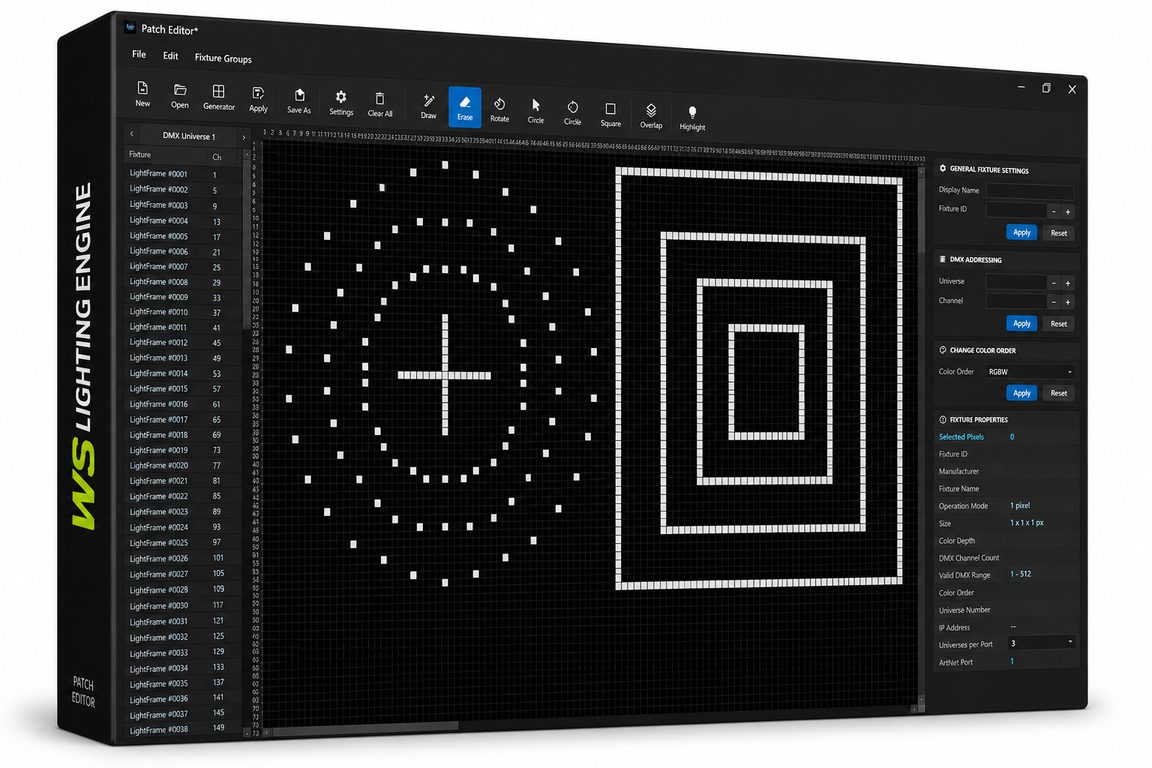
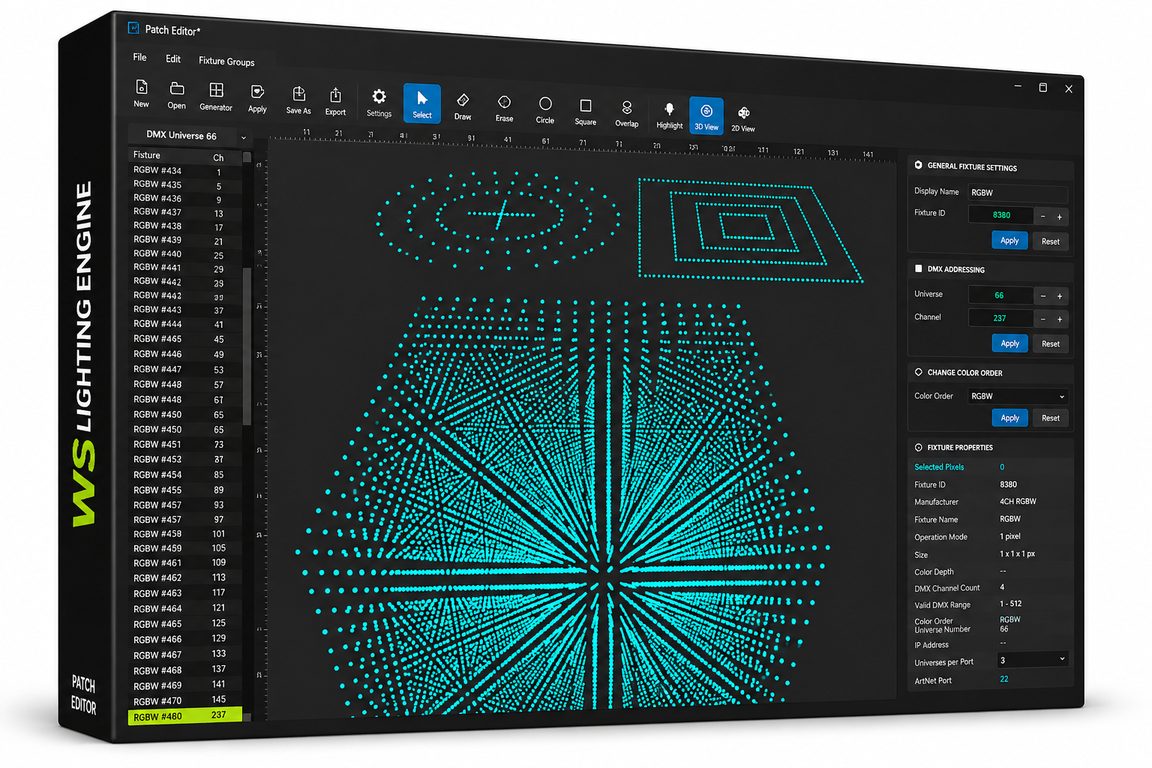
Plot complex perimeter layouts using mathematical shape tools. Place circular fixture arrays, rectangular matrices, or custom LED strip lines effortlessly. The editor supports drag-and-drop plotting, snap-to-grid mechanics, and rapid duplication tools for massive stage rigs.
Handle non-standard LED wiring with ease. Choose from Top-Left, Bottom-Right, Snake-wiring (Zig-Zag), or vertical line routing. The patch editor automatically calculates DMX universe crossings and channel offsets across standard RGB, RGBW, and monochrome fixtures without manual intervention.
Optimized sparse patch indexing processes only active patched pixel positions, enabling smooth execution on sparse rigs with 500,000+ total canvas pixels. By skipping blank areas, the DirectX 12 Compute shader drastically reduces memory bandwidth consumption.
Project 2D patch grids into a 3D stage volume with real-time camera rotation, pan, and zoom preview controls. The 3D viewport accurately simulates depth-of-field, pixel pitch scale, and LED bloom, allowing you to pre-visualize shows identically to how they will appear in the real world.
Select specific LED props and assign them to isolated Fixture Groups. This powerful feature allows effects to be applied selectively. For example, apply a fire shader exclusively to the stage trussing, while a fluid dynamic shader runs on the main backdrop matrix, all within a single unified project file.
⚙️ Advanced & Architecture Deep Dive
WS Lighting Engine is engineered from the ground up for extreme performance, low latency, and rock-solid stability during live concert tours, festival broadcasts, and architectural facade installations.
DirectX 12 ComputeSharp Pipeline
Leverages dynamic HLSL C# shader compilation via ComputeSharp to calculate millions of LED pixel colors directly in VRAM, eliminating CPU bottlenecking.
Dual-Deck Layer Blending Engine
Dual independent render stacks (Deck A and Deck B) with master crossfading and Photoshop-grade blend modes (Add, Screen, Multiply, Overlay, Max, Min).
Lock-Free Double-Buffered Network Thread
Network transmission operates on an isolated, high-priority background thread with atomic double-buffering. Rendering threads never block on UDP network socket calls.
Power Throttling Prevention
Explicit process power throttling overrides prevent Windows OS from reducing CPU/GPU render frequency when the application window loses focus in high-pressure live environments.
To support displays exceeding 1 million physical LEDs, the engine utilizes a lock-free double-buffered stage array swap (_artNetStageBuffer & _artNetNetworkBuffer). The GPU render thread writes completed frame buffers to stage memory, while a dedicated network thread dispatches Art-Net UDP packets continuously at 44Hz without mutex lock contention.
For custom LED fixture designs where physical LEDs occupy only a portion of the bounding box (e.g. 170,000 active LEDs inside a 2,700,000 pixel bounding box), the engine pre-indexes patched byte offsets (_patchedPixelIndices). GPU kernels compute and stream only the exact patched indices, cutting VRAM memory bandwidth by over 70%.
Every deck maintains 256 instant-recall storage slots (S1–S256). Presets save layer stacks, color palettes, speeds, and effect parameters into JSON state files. The timeline cue list engine sequences storage slots with microsecond accuracy against global audio timecode.
Utilizes RSA-2048 asymmetric encryption and offline verification to ensure zero show interruptions during network drops. Software keys are validated dynamically ensuring maximum uptime in critical live show scenarios.
Minimum (Up to 10,000 Pixels): Windows 10 (64-bit), Intel Core i5 / AMD Ryzen 5, 8GB RAM, DirectX 12 GPU (GTX 1050 / RX 560).
Recommended (100,000+ Pixels): Windows 11 (64-bit), Intel Core i7 / AMD Ryzen 7, 16GB RAM, RTX 3060 / 4060 GPU, Dedicated Gigabit Ethernet NIC for Art-Net/sACN output.
🏢 About Us
WSPIXEL Technologies Pvt. Ltd.
WSPIXEL Technologies Private Limited is a premier innovator in digital lighting control software and hardware. We build cutting-edge visual engines for festival stages, architectural installations, and concert touring rigs worldwide.
Website: https://wspixel.com/